



Copying data from the iPhone/iPod/iPad’s calendar into Google Calendar
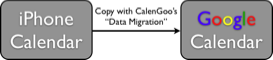
However if you would like to switch from using the iPhone/iPad/iPod calendar to using Google Calendar, there are several ways to copy your data into Google Calendar:
1. The "Data Migration" function in CalenGoo
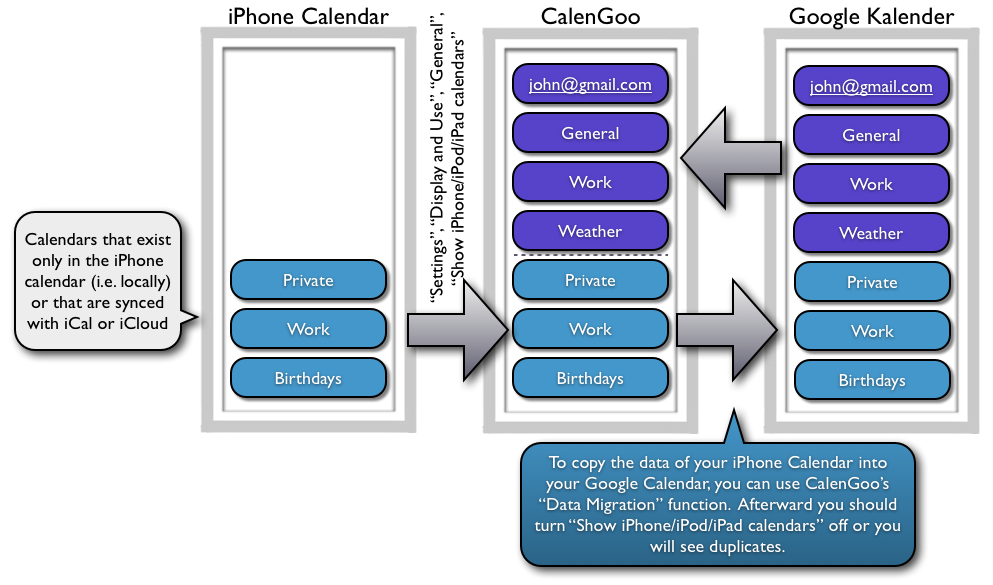
You can find this function under “Settings > Data Migration”. It is only visible if “Settings > Accounts > Show iPhone/iPod/iPad calendars” is turned on. There you can choose a source calendar, a time range and a destination calendar. It is recommended to use an empty destination calendar (please see here how to create additional calendars: Calendars). This way you can simply delete and re-create it if something goes wrong. You can create such an empty calendar by clicking “Create new calendar” under “My calendars” on the left of the Google Calendar website.
This “Data Migration” function will not check for existing events in the destination calendar. So if you run it twice, you will have all events twice in the destination calendar. That’s another reason why it is a good idea to use an empty destination calendar.
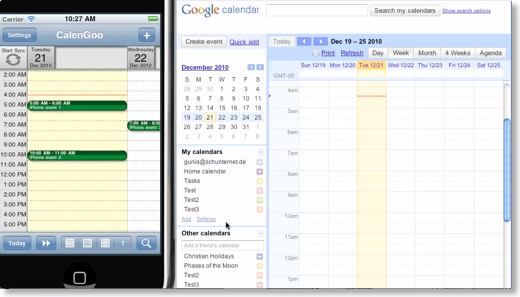
You can watch a video how the whole copy process should look like, just click the image below or download it from http://www.calengoo.com/DataMigration.mov.
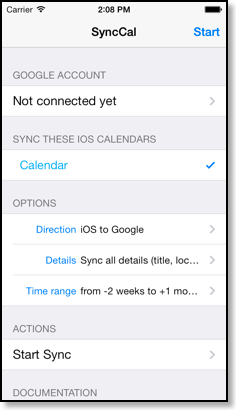
Using the "Data Migration" function you can copy your existing events from the iOS calendar into Google Calendar. This works fine if you don’t need the iOS calendar afterward any more and use Google Calendar instead. However in some cases this isn’t possible, e.g. if your iOS calendar contains a calendar that is synced with an Exchange server and thus it isn’t sufficient to sync it only once. If you are looking for a way to automatically sync such calendars at a regular interval with Google Calendar (instead of only once), please take a look at the app SyncCal.
2. Using iCal on a Mac
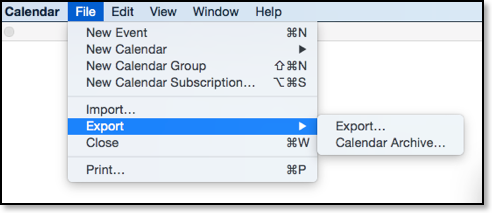
iCal has a function to export a calendar as an ICS file, which can be imported into Google Calendar. To export a single calendar, just select the calendar and then choose "File > Export > Export...".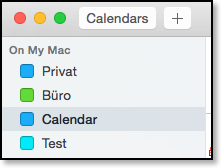
Then open Google Calendar, click on the gear icon in the upper right corner and choose "Settings > Calendars > Import calendar". You should import the ICS file into an empty calendar, otherwise it will be merged with the existing events.
3. Using the app SyncCal
The app SyncCal can copy a time range of the iOS calendar into a new calendar in your existing Google Calendar account. You can find further information about it here: http://synccal.calengoo.com